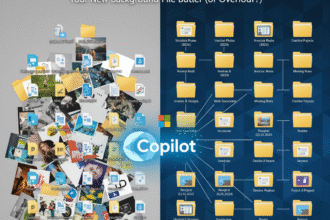

Microsoft CEO Satya Nadella believes we are living through the next major shift in computing. In a recent video, he named three AI features he uses daily, calling them “as revolutionary as the touchscreen.”
These tools, all part of Microsoft’s Copilot, are changing how we learn, plan, and interact with our computers. Here’s a simple breakdown of each one and what it does.
1. Voice-First Copilot on Windows
What It Is: Voice-First Copilot is not a separate app but rather the deep integration of voice commands into the Windows operating system, using Copilot as the intelligent assistant. Satya Nadella called it the new “mouse” because it’s a new, primary way to interact with your computer. It’s built on the “Voice Access” technology in Windows, allowing you to control your entire PC, write, and edit text using only your voice.
What It’s Used For:
- Hands-Free Control: Navigating Windows, opening applications, switching between windows, and clicking buttons without a mouse.
- Efficient Multitasking: You can be typing a document and simultaneously use your voice to ask Copilot to “summarize my last email from [name]” or “turn on dark mode” without stopping your work.
- Advanced Dictation: Going beyond simple speech-to-text, you can dictate and edit in real-time. For example, you can say, “Type ‘The report is almost ready,’ then bold ‘almost,’ and send it.”
- Accessibility: It’s a transformative tool for users who have difficulty using a traditional keyboard and mouse.
How to Use It:
- Enable Voice Access:
- Go to Settings > Accessibility > Speech.
- Turn on the Voice Access toggle. (The first time you use it, it may need to download a speech model).
- Activate Listening: Once enabled, a bar will appear at the top of your screen. You can wake it up by saying “Voice access wake up” or “Unmute.”
- Give Commands:
- To open an app: “Open Word,” “Open Chrome.”
- To control windows: “Switch to Edge,” “Minimize window.”
- To click: To click a button, say “Show numbers.” Windows will overlay numbers on every clickable item. Then, just say the number (e.g., “Click 14“).
- To dictate and edit: “Type ‘Hello world'” > “Delete ‘world'” > “Type ‘everyone'” > “Bold ‘everyone’.”
2. Mico (Socratic Tutor)
What It Is: Mico is a new, optional character interface for Microsoft Copilot. Think of it as a “face” for the AI, but its real power is its teaching style. Instead of just giving you the answer to a question, Mico is designed to be a Socratic-style tutor. This means it teaches you by asking you questions, guiding you to discover the answer and understand the concepts more deeply.
What It’s Used For:
- Active Learning: Ideal for students or anyone who wants to truly learn a new subject, not just copy-paste an answer.
- Deepening Understanding: You can ask it to help you learn about a complex topic like “Egyptian mythology” (the example Nadella used) or “how does photosynthesis work?”
- Engaging Education: It makes learning interactive and conversational, which can be more effective and fun than reading a textbook.
How to Use It:
- Activate Mico: Inside the Copilot chat interface (on the web or integrated into Windows/Edge), you would typically find a setting or icon to enable Mico as your Copilot’s “character” or “mode.”
- Start a Learning Session: Instead of asking a factual question like “Who is Anubis?”, you would start with a learning prompt, such as:
- “Can you teach me about Egyptian mythology?”
- “I want to learn about the basics of quantum computing.”
- “Help me understand why the sky is blue.”
- Engage in the Dialogue:
- You: “Can you help me learn about the Egyptian gods?”
- Mico (as a Socratic tutor): “That’s a great topic! To start, what do you already know about ancient civilizations and their gods? For instance, do you know why they had gods for things like the sun or the river?”
- You: “I guess it was to explain things they didn’t understand.”
- Mico: “Exactly! That’s a key concept. Now, thinking about the Nile river, what kind of god do you think would be very important to the Egyptians? A god of…?”
This back-and-forth process continues, with Mico guiding you to connect the dots yourself.
3. AI Planner (in Microsoft Planner)
What It Is: The AI Planner is a feature inside the Microsoft Planner app (part of the Microsoft 365 and Teams ecosystem). It uses Copilot to act as an intelligent project manager. You give it a high-level goal, and it does the hard work of breaking it down into a complete, organized project plan.
What It’s Used For:
- Instant Project Creation: Instantly turns a simple idea into a detailed plan, saving hours of manual setup.
- Task Generation: Automatically creates a list of all the tasks and sub-tasks needed to achieve your goal.
- Smart Scheduling: It can assign tasks, set deadlines, and identify project goals.
- Managing “Mental Load”: As Nadella mentioned, it offloads the cognitive work of “how do I even start this?” and “what am I forgetting?” It builds the entire scaffold for your project.
How to Use It:
- Open Microsoft Planner: You can access this through Microsoft Teams or as its own web app (it’s part of most Microsoft 365 subscriptions, but the Copilot feature is a premium add-on).
- Prompt Copilot: Inside Planner, you will see the Copilot icon (a diamond-shaped logo). Click it to open a chat box.
- Give It a Goal: Type a natural language prompt describing your project. For example:
- “Create a plan to launch our new company newsletter.”
- “Make a plan for a marketing campaign for our new product launching in Q4.”
- “Plan a team off-site event for 50 people.”
- Review and Refine: Copilot will generate a full plan, including:
- Buckets: (Categories like “Content Creation,” “Email Design,” “Subscriber List,” “Launch Day”).
- Tasks: (e.g., “Draft first newsletter,” “Design email template,” “Import contacts”).
- Goals: (e.g., “Reach 1,000 subscribers”).
From there, you and your team can jump in and start working on the tasks it created. You can also ask it to “add a task for ‘final budget review'” or “what are the next steps for this plan?”