
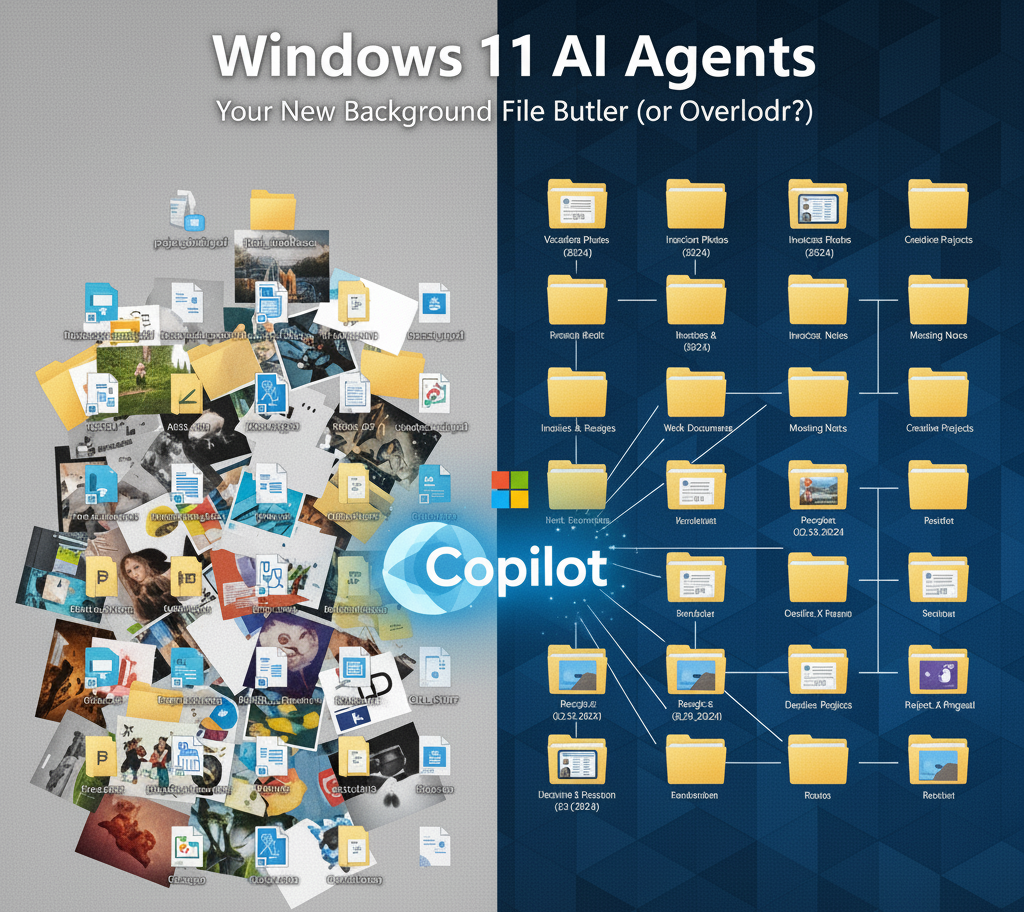
Look, we need to talk about your Downloads folder. You know the one. It’s a digital graveyard of IMG_5592.jpg, Report_Final_Final_v3.pdf, and that random installer for a printer you owned in 2019. If you’re anything like me, you’ve promised yourself you’ll organize it “someday.”
Well, Microsoft apparently got tired of waiting for “someday.”
In their latest move to inject Artificial Intelligence into literally everything (including probably your toaster by next year), Microsoft has introduced AI Agents to Windows 11. These aren’t just chatbots you talk to; these are silent, background workers designed to scrub your digital floors while you’re busy doing actual work—or watching cat videos.
It’s called the Agent Workspace, and it promises to change how we use our computers forever. But is this the productivity boost we’ve been dreaming of, or is it just Clippy 2.0 with a scary amount of power? Let’s grab a coffee and dig into what’s actually happening inside your OS.
What on Earth is an “Agent Workspace”?
Imagine if you could hire an intern whose only job was to sit inside your computer, stare at your files, and fix them. That’s essentially what Microsoft is building.
Technically speaking, the Agent Workspace is a new experimental environment in Windows 11. It allows AI models (powered by Copilot) to operate independently from you. Unlike the current Copilot, which waits like a polite waiter for you to ask a question, these new agents are “agentic.” That’s fancy tech-speak for “they can do stuff without you holding their hand.”
These agents run in a separate, contained session—think of it as a sandbox or a virtual room inside your computer. They have their own desktop environment that runs parallel to yours. While you are typing an email in your main window, the agent is in its own little invisible window, moving files, renaming documents, or summarizing spreadsheets.
It’s kind of like having a ghost in the machine, but a helpful one. Hopefully.
The “Cool” Stuff: Why You Might Actually Want This
Okay, putting the skepticism aside for a second (don’t worry, we’ll bring it back later), the utility here is undeniable. We generate more data today than ever before, and our ability to manage it hasn’t improved since Windows 95.
Here is what these agents are designed to handle:
1. The “Semantic” Search Upgrade
You know how frustrating it is to search for a file when you can’t remember the name? You type “marketing” and Windows shows you 500 files. With the new AI integration, Windows is moving toward Semantic Search. This means you can search for concepts, not just keywords. You could type: “Show me the photos from that trip where Dave dropped his ice cream,” and the AI, understanding the content of your images and the context of “dropped ice cream,” pulls up the exact file.
2. Automated File Triage
This is the big one. The agents have access to “known folders” like Documents, Pictures, and Downloads. They can autonomously look at a pile of unorganized files and sort them. Imagine dropping 500 photos from your phone onto your desktop. Instead of leaving them there for six months, the AI agent wakes up, sees the mess, and silently creates folders labeled “Beach Vacation 2025,” “Receipts,” and “Cat Memes,” sorting everything into the right place before you’ve even finished your coffee.
3. Copilot Actions
Microsoft is also rolling out “Copilot Actions.” These are specific triggers. You could set up a rule that says: “Every time I download a PDF that looks like an invoice, rename it with the date and vendor name, and move it to the ‘Taxes’ folder.” Previously, you needed complex scripts or third-party tools like Zapier to do this. Now, it’s native to the OS.
How It Actually Works (The Geeky Bits)
For the fellow nerds reading this, you might be wondering how this doesn’t crash your PC.
Microsoft is using a fascinating architecture here. The agents don’t just hijack your mouse and keyboard. They utilize Read/Write permissions on specific directories. When you enable the feature (currently buried in Settings > System > AI Components > Experimental Agentic Features), you are essentially granting a “user account” to the AI.
It operates with Least Privilege Access, meaning (in theory) it can only touch what you tell it to touch. It’s not supposed to be rooting around in your system files or uninstalling your drivers because it thinks they look “cluttered.”
The agents use a mix of local processing (via the NPU—Neural Processing Unit—if you have a fancy new Copilot+ PC) and cloud processing for the heavy lifting. This hybrid approach is how they aim to keep your laptop from taking off like a helicopter every time it tries to organize a folder.
The “Skynet” Factor: Privacy and Security
Alright, let’s bring the sarcasm and the healthy paranoia back.
You are giving an AI autonomous capabilities to read, open, edit, and move your personal files in the background. What could possibly go wrong?
The Security Concern: Security researchers are already raising eyebrows. If an AI agent has permission to modify your files, and that AI agent gets confused (or hallucinated), could it accidentally “organize” your tax returns into the recycle bin? More importantly, if a hacker gains access to your system, they don’t just have your permissions anymore—they have your agent’s permissions. It creates a new “attack surface.” Instead of hacking you, they could potentially trick the agent into sending sensitive data out, or encrypting your files as part of a “tidying up” process that looks suspiciously like ransomware.
The “Creep” Factor: There is something inherently unnerving about seeing files move on their own. We are used to computers being static; nothing happens unless we click. Shifting to an “agentic” OS where the computer has its own agenda (even a helpful one) is a massive psychological shift. Microsoft has promised “transparency.” There are supposed to be logs and taskbar indicators showing exactly what the agent is doing. You’ll see a little icon working away, so you know it’s not a ghost. But will users actually check those logs? Probably not until something goes missing.
Who is This Actually For?
Right now, this feature is rolling out to Windows Insiders (the brave souls who beta test Windows so the rest of us don’t have to). It is heavily targeted at:
- Enterprise Users: People who drown in paperwork. If you are a lawyer or an accountant, an AI that auto-files documents is a godsend.
- Content Creators: Video editors and photographers who have thousands of unnamed assets.
- The Laziest Among Us: Those of us who just want the computer to “do the thing” so we can go back to gaming.
How to Get It (Or Turn It Off)
If you are feeling adventurous and want to try this out:
- You need to be in the Windows Insider Program (likely the Dev or Canary channel).
- Go to Settings.
- Navigate to System > AI Components.
- Look for Experimental Agentic Features (or “Copilot Actions” depending on your build).
- Toggle it On.
Warning: This is beta software. Do not turn this on if you don’t have a backup of your data. I repeat: BACK UP YOUR DATA.
If you are reading this and thinking, “Absolutely not,” the good news is that Microsoft is (currently) making this opt-in. You have to explicitly turn it on. However, given Microsoft’s history (remember how they “suggested” we use Edge?), keep an eye on your settings after major updates.
The Future: Clippy’s Revenge?
It is easy to mock Microsoft for trying to force AI into Windows, but honestly? This is the inevitable future of operating systems.
We are moving away from “files and folders” and toward “intent and context.” In ten years, we might look back at the idea of manually dragging a file into a folder as charmingly archaic, like using a rotary phone or faxing a meme.
These background agents are the first step toward an operating system that acts less like a tool and more like a partner. Sure, it’s a partner that might occasionally hallucinate and hide your wedding photos, but it’s a partner nonetheless.
My advice? Keep your backups current, maybe organize your “sensitive” folder yourself, and give the AI a chance with the junk drawer that is your Downloads folder. Worst case scenario? It deletes that printer installer from 2019. And honestly, you probably didn’t need that anyway.





One Comment
This sounds like a game-changer for productivity, but I’d definitely want to test it carefully before letting it loose on my important files.